The remote support workspace

Support shouldn't leave a sour taste.

A support call today is four tools that don't know about each other, and a customer trying to keep up with all of them. This is one session instead: their screen, your control, the chat, the files, and a log of who connected and when.

Need macOS? Download .dmg (or .zip) Need Windows? Download .exe

Runs on Conexa infrastructure in Romania. Available for Windows, Mac, iPhone, and Android. No account needed on customer side.

The main interface

Ultra-low latency support. Without the sour.

The native desktop client gives your team instant quick connect, permanent 9-digit addresses, session history, and peer-to-peer streaming.

  • Instant 9-Digit Connection

    Zero account or setup needed on the customer side. Enter the ID and connect in seconds.

  • Permanent Device Address

    Your customer's device keeps the same address. No expiring codes or daily confusion.

  • Recent Session History

    Audit trail of all recent sessions with 1-click reconnect to frequent customer PCs.

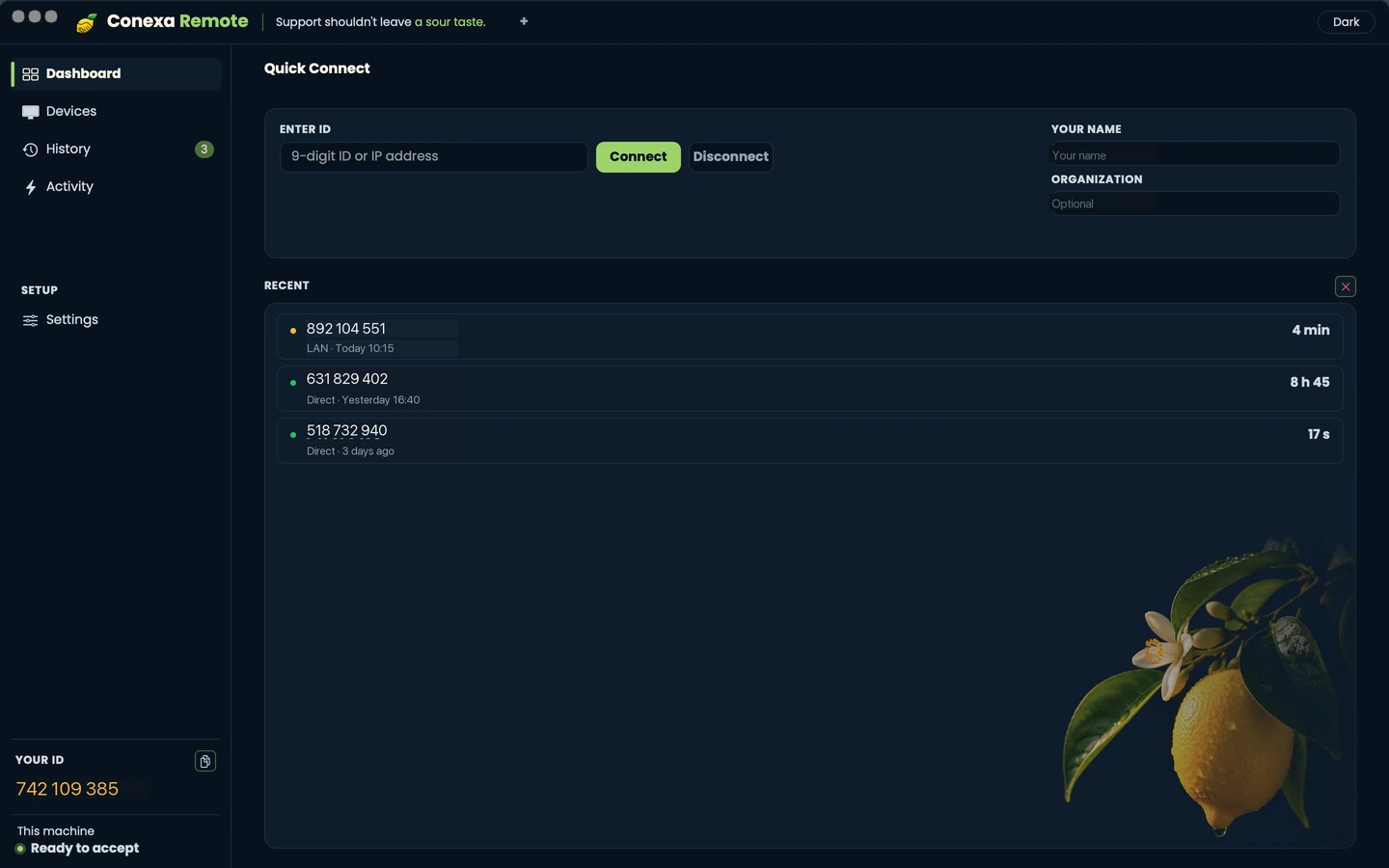
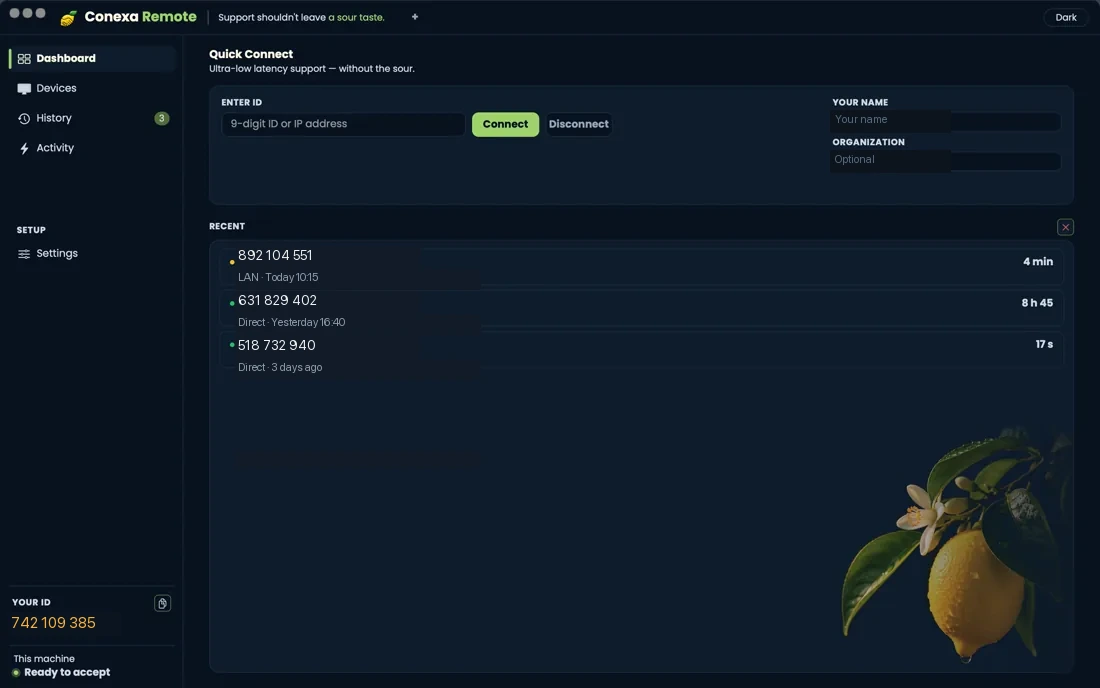
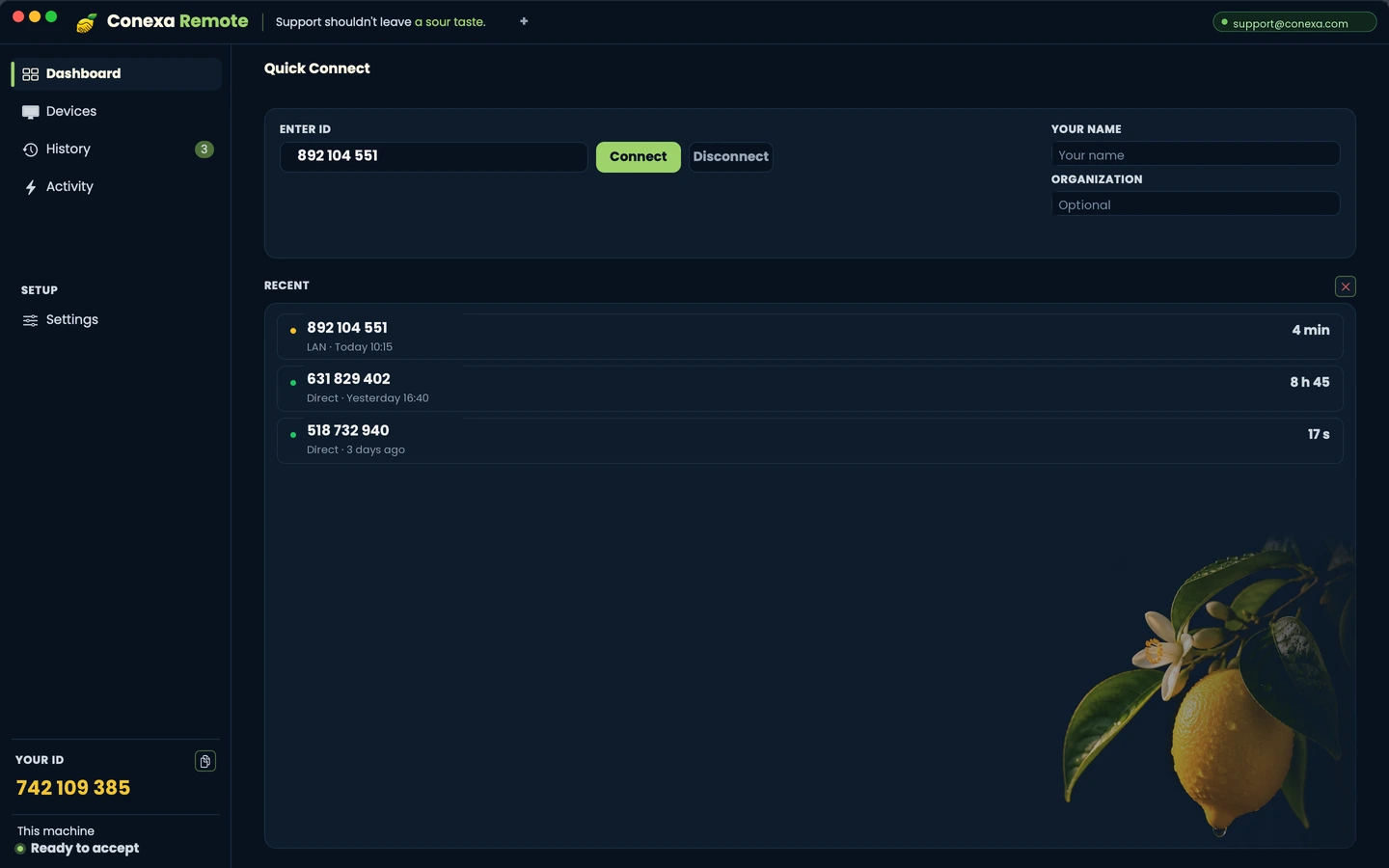
Real Conexa Remote macOS desktop application: main dashboard with quick connect, permanent device ID 742 109 385, and session history

The real Conexa Remote desktop client on macOS

What we built instead

See the screen. Take control. Type. Send. Solve.

Remote desktop solves access. It does not solve support.

How it usually goes

  • A tool to install, a meeting link to join, a chat to find
  • A code read out digit by digit, that expires
  • Screenshots pasted into a chat the session knows nothing about
  • A licence key read out over the phone, one character at a time
  • The ticket written afterwards, from memory
How a session works

Six steps. Two of them are the customer's.

Opening the app and clicking Accept. Everything else happens on your side of the call.

Start

The customer opens Conexa Remote, installed the first time you helped them, and reads you a 9-digit address. It is the same address next month and next year.

The device address
482913706
Online Waiting for a technician.

Consent

A prompt names the technician who is asking. Until the customer clicks Accept, nothing is shared. Requests expire after 60 seconds.

Connect

Screen and control open directly between the two machines. Our relay carries the session only when a firewall blocks the direct path.

Communicate

Type in the chat, send a file, paste what has to be copied exactly. No second link, no meeting to schedule, nothing else for the customer to learn. Camera is coming.

Resolve

Take control, send the file, paste the licence key, click through the UAC prompt. Explain while you do it, so the customer learns instead of waiting.

Close and keep the log

Either side ends it instantly, and the customer's End button works even while you are typing. What stays behind is the log: who connected, to which device, when, for how long.

Download for Windows and macOS

Free on your own machines. The customer installs the same app, no account needed.

What your team gets

Built from the problems support teams hit ten times a day.

Control that keeps up with your hands

Pointer movement travels on its own channel, separate from clicks and keystrokes, so a slow frame never delays a click. If the customer grabs their mouse they get priority for a moment, then control returns to you.

  • Multi-monitor: switch the captured display from the toolbar
  • In-session encrypted chat with instant delivery and read confirmation
  • Persistent customer safety banner with one-click disconnect
  • Quality profiles: auto, performance, balanced, quality, with relay-aware limits
  • View-only mode when you only need to watch
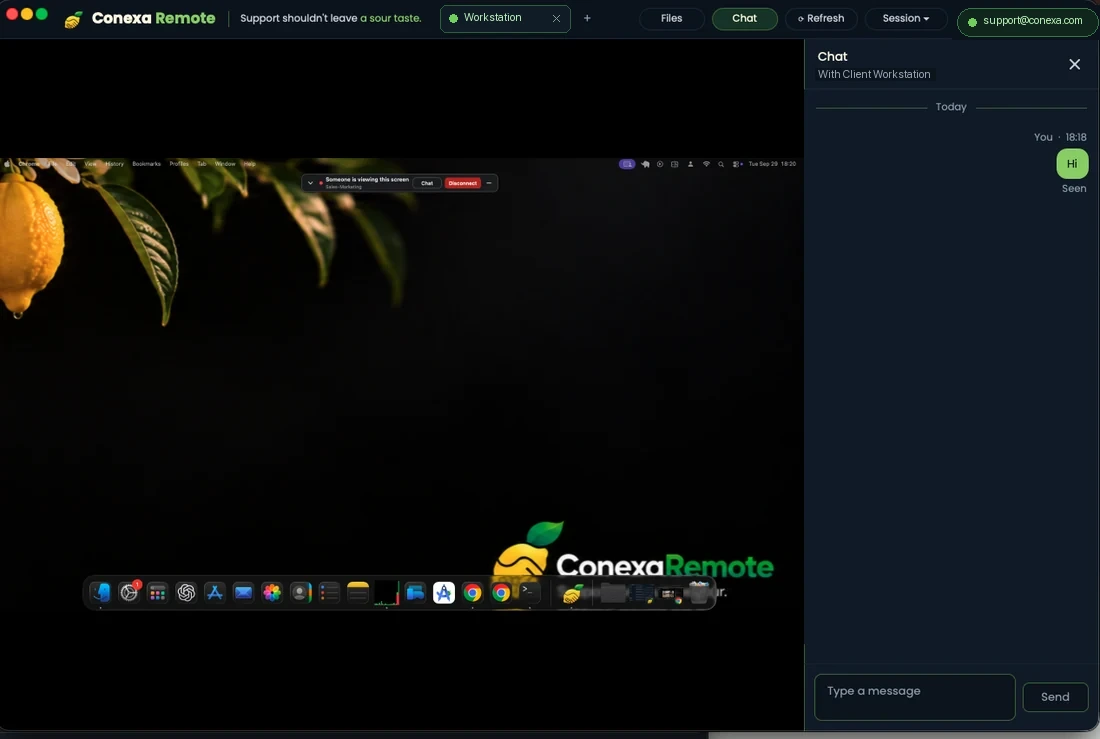
Real Conexa Remote active session: remote desktop view, customer disconnect safety banner, and integrated encrypted chat
Real in-session view: customer safety banner, multi-tab toolbar, and encrypted chat

Made for the connection the customer actually has

Support does not happen in an office with fibre. It happens on a shop counter over 4G, in a warehouse at the far end of a repeater. The session sends what changed on the screen, not the whole screen again, and drops quality before it drops the call.

  • Quality adapts on its own, and you can pin it when you know better
  • A 30-second grace window survives Wi-Fi hiccups and laptop sleeps without asking the customer again
  • Instant 1-click reconnect: if a connection drops or closes, resume with one click without re-exchanging 9-digit codes
  • Route, latency, packet loss and frame rate are visible live, on both sides
  • Relay-aware limits: when a firewall forces the relay, the session stays usable instead of stalling
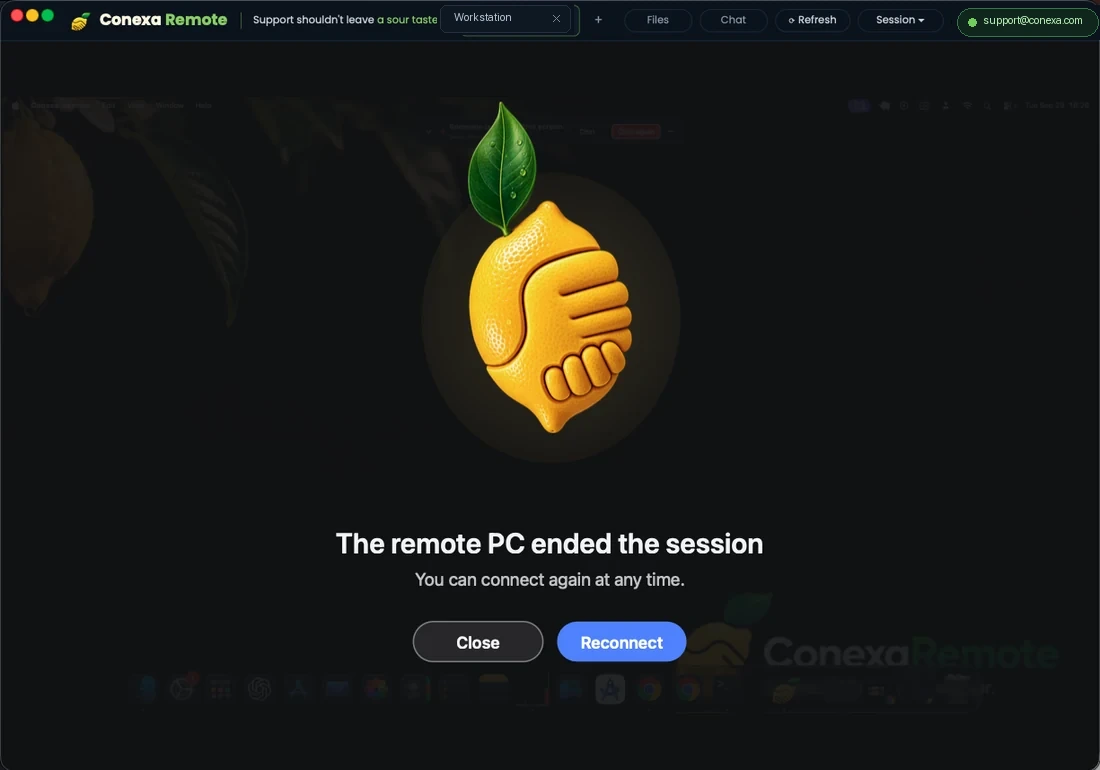
Conexa Remote instant reconnection screen: reconnect with one click whenever a session ends or drops
Instant reconnection: resume the session in one click without re-typing codes

Files and clipboard, both directions

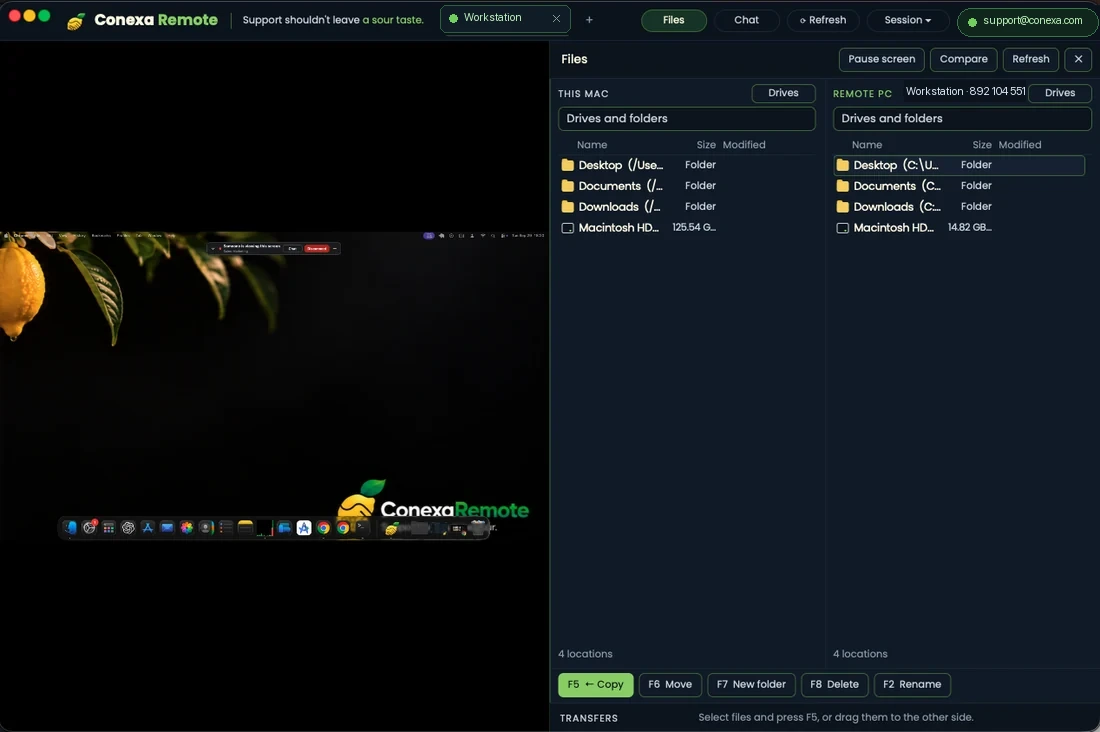
Dual-pane file manager lets you browse local and remote directories simultaneously. Full clipboard synchronization lets you copy and paste text, code snippets, and files between PCs as easily as on your local machine.

  • Cross-PC copy & paste: copy text, passwords, URLs, or commands on your PC and paste instantly into the remote machine (and vice versa)
  • Direct file clipboard: press Ctrl+C on any local file, switch to the remote session, and press Ctrl+V into any folder
  • Dual-pane file manager: local drives vs remote folders with classic sysadmin F5–F8 hotkeys
  • P2P drag and drop: drop files right onto the remote screen with auto-resume on network drops
Real Conexa Remote dual-pane file transfer manager with drives, folders, and keyboard shortcuts
Dual-pane file manager: local drives, remote directories, and sysadmin F5–F8 hotkeys

Bring a colleague into the session

Invite a second technician by address. Both of you see the screen, one drives at a time, and control passes with a click. The customer sees everyone who is connected.

  • Up to two operators per session
  • Control lease shows who is driving, always
  • Invitations are tied to the colleague's device and expire
Session Operators · 3 Active 1 Active Lease
MI
Maria IonescuPrimary Operator
Controlling
RD
Radu DumitrescuSecondary Tech
Watching · 2m
PC
PC2 · Customer OfficeCustomer Endpoint
Host Screen

Windows UAC and Ctrl+Alt+Del, without losing the screen

Most remote tools go black the moment Windows asks for administrator approval. A small system helper keeps the capture running, so you click through UAC prompts, sign-in screens and Task Manager as if you were sitting there.

  • Send Ctrl+Alt+Del from the toolbar
  • Secure desktop frames on a separate channel so input never queues behind video
  • Helper installs once, per machine, with the customer's approval
User Account Control

Do you want to allow this app to make changes to your device?

HP Universal Print Driver Installer.exe
Verified publisher: HP Inc.
File origin: Hard drive on this computer
YesNo
Windows Secure Desktop · Conexa service hook captures 100%

See the person, not just the screenComing soon

A support call is two people, not one desktop. Turn on the camera and you see the shrug, the hesitation, the moment they stop following you. Chat is already there, in the same window, for what has to be read rather than heard: a licence key, a path, a link. Camera is coming soon — chat is available now.

  • Camera on either side, or neither: nothing starts without a click
  • In-session chat with a notification on the customer's screen
  • Same encrypted channel as the screen, not a separate service
  • Video can be turned off mid-session without dropping the connection
Video & Screen Stream WebRTC 60 FPS
MI
Maria IonescuCamera ON · HD Audio
Controlling
PC
PC2 · Customer OfficeCamera ON · Screen Shared
Customer

Also in the box

  • Unattended accessFor your own servers and kiosks: the device owner enables it explicitly, per machine.
  • Private screen (blanking)Blank the remote monitor with one click while typing master passwords or confidential settings (Windows; macOS support in progress).
  • Contacts and groupsSave customers by address, group them by client or site, see who is online.
  • Technician accountsEmail and password per technician, admin role for managing the team.
  • Auto-updateThe customer app updates itself. Your team is never blocked by a version mismatch.
Who it is for

Teams whose day is measured in sessions.

If you run a few remote sessions a year, almost any tool will do. This is built for teams who open one before their coffee.

  • Software vendorsYou support your own product on customer machines and need to see the screen the same day the ticket lands.
  • IT service providers and MSPsMany customers, many devices, technicians who need to hand a session to a colleague without starting again.
  • Equipment and hardware serviceMachines in shops, workshops and warehouses, on the connection that happens to be there.
  • Multi-location businessesOne IT person for every site, and nobody on site who can describe a problem in technical terms.
  • Internal corporate ITStaff laptops at home and on the road, with an audit trail your security team can read.
  • Accountants and consultantsYou work inside other people's accounting and their data. Both sides need a log of who opened what.
Platforms

Windows, Mac, iPhone, Android. Support any screen from anywhere.

PlatformBe supported (customer)Give support (technician)Notes
Windows 10 / 11YesYesNative desktop app. UAC and secure desktop supported. Bidirectional text and file clipboard.
macOS 12+YesYesUniversal build for Intel and Apple silicon. Full remote control, chat, dual-pane files, and clipboard sync.
iPhone / iPadYesYesMobile client & Web app. Touch controls, virtual modifier bar, remote viewing and mobile technician support.
AndroidYesYesMobile client. Touch controls, full clipboard synchronization, and on-the-go remote support.
BrowserNoYesChrome, Edge, Firefox, Safari. Instant technician access from any operating system.
LinuxPlannedBrowserNative Linux client is on the roadmap.

Download the apps for Windows, macOS, iOS, and Android.

Security

Nothing happens without the customer's click.

Every session starts with a consent prompt that names the technician. Screen, input, files and chat travel encrypted over WebRTC, directly between the two machines when possible. Our relay forwards only packets it cannot read, from servers in Romania.

Read the security overview

Real application screens

This is the app in action. Real pixels, zero mockups.

Authentic screens from running Mac and iPad installations — see exactly what your technicians and customers experience.

Conexa Remote — macOS Native Client · Quick Connect
Online · Bucharest Relay
Conexa Remote macOS full dashboard
Permanent 9-Digit ID Same device address today and next year. No expiring 6-digit codes.
Direct LAN & Encrypted Relay Peer-to-peer WebRTC by default. Secure Romanian relay fallback.
1-Click Reconnect Instant recall from verified session logs with zero customer re-setup.

Permanent address & session history

Audit trail of all recent incoming and outgoing connections, transport protocol (LAN Direct vs Encrypted Relay), and duration.

Recent Connections · Device 742 109 385
Real Conexa Remote session history showing direct LAN and relay connections

Unattended access & cryptographic security

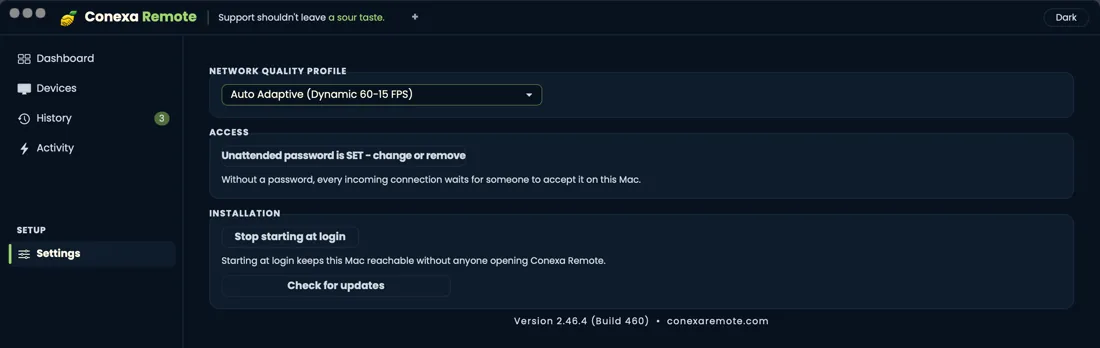
Every session requires physical customer consent by default. Password-protected unattended access is enabled explicitly per machine.

Security Settings · Access Control
Real Conexa Remote security and unattended password settings

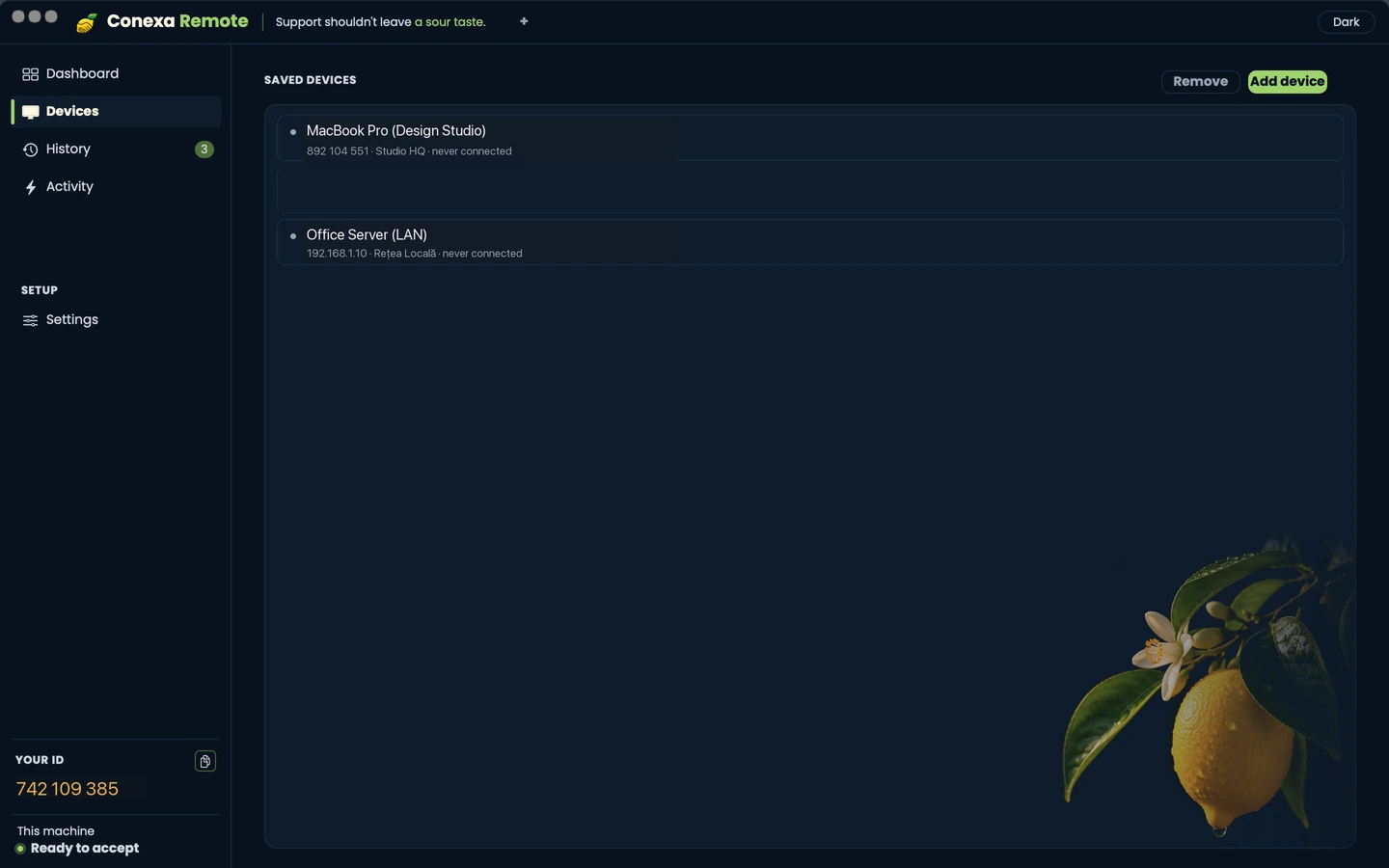
Customer & device address book

Organize customer workstations by company, branch, or tag. Launch direct remote support without tracking IDs on paper or chat.

Address Book · Saved Clients
Real Conexa Remote saved devices address book

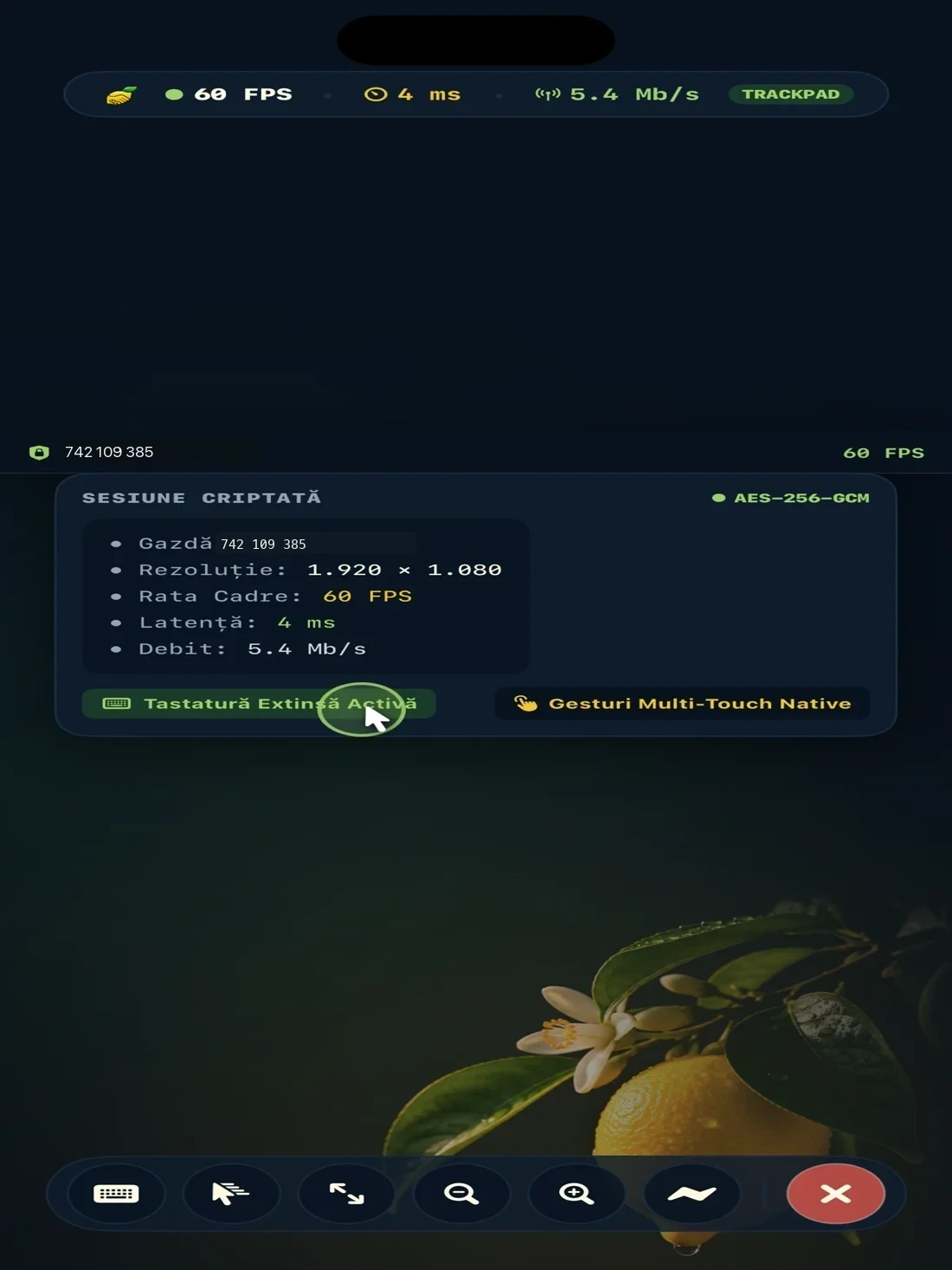
Mobile technician support on iPad & tablet

Control customer PCs and Macs with native touch gestures, pinch zoom, on-screen keyboard modifier bar, and real-time 60 FPS streaming.

Conexa Remote for iPad
Real iPad interface controlling a remote desktop with Conexa Remote

Try it on your own machines first.

Install the app on a PC, connect. Ten minutes, no sales call.

  • Free on your own machines, with no trial clock
  • No card to start
  • Monthly plans end at the end of the month